How to Find Similar Harmonic Trad Tunes with Song Galaxy (UMAP)
Sometimes you want a new tune that feels like the one you’re currently learning – not necessarily the same rhythm, not necessarily the same key, but the same kind of chord movement and harmonic vocabulary. That’s exactly what the Song Galaxy (UMAP) view in Trad Tune Explorer is built for.
What “similar harmony” means here
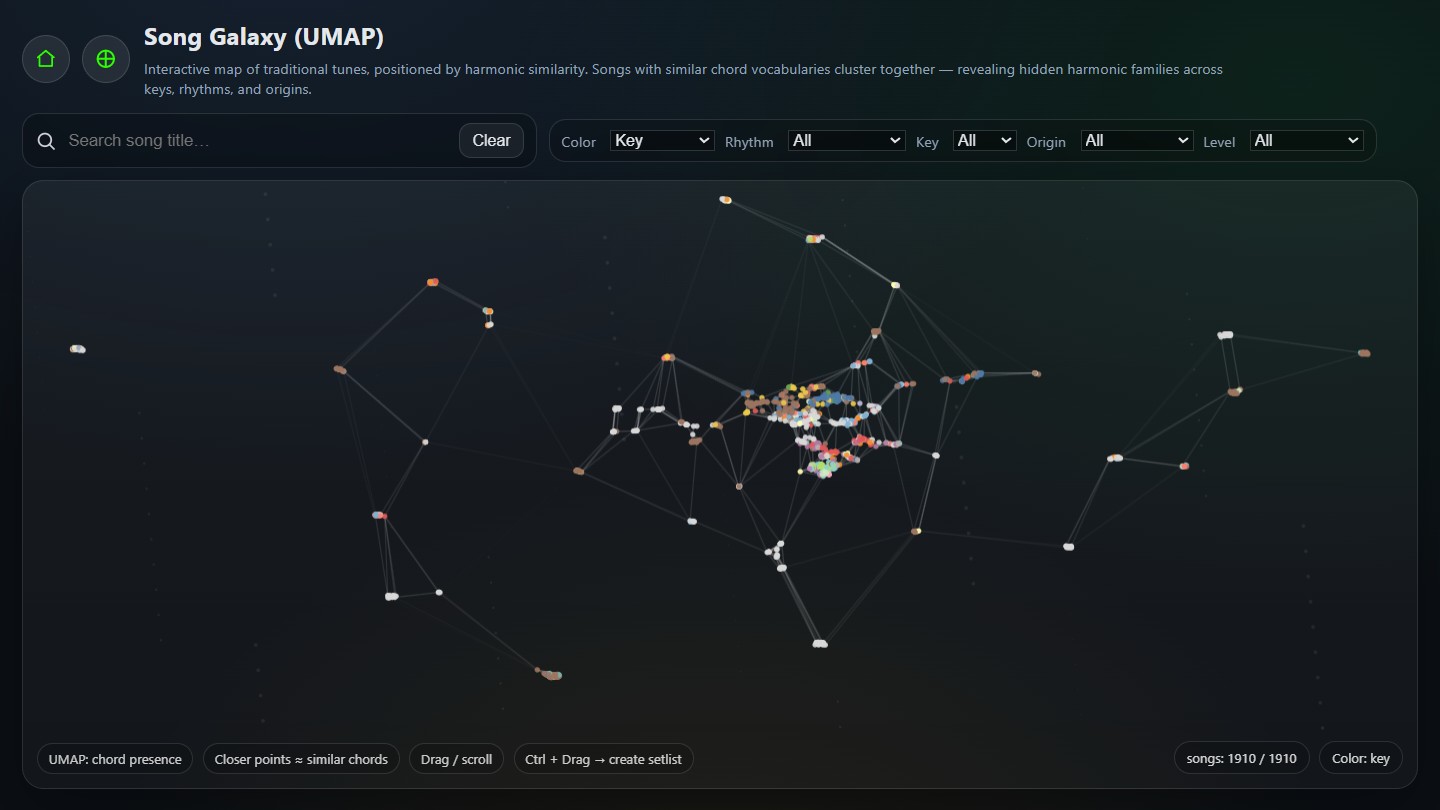
In Trad Tune Explorer, the Song Galaxy places each tune as a point in a 2D map using a dimensionality‑reduction technique (UMAP). The input features are based on a tune’s chord vocabulary (which chords appear, and how they tend to co‑occur). The big idea is simple:
Closer points usually share more chords and often “sound” like they belong in the same harmonic family.
This is a different kind of similarity than “same key” or “same rhythm”. Two tunes can be harmonically similar even if one is in D major and the other is in G major – because their functional harmony and chord palette are doing comparable things.
Open the Galaxy focused on a tune
The fastest way to start is to open the Galaxy with a tune pre‑selected. For example, here is a direct link:
https://www.tradtuneexplorer.com/stats-song-galaxy.html?song=garrett-barrys
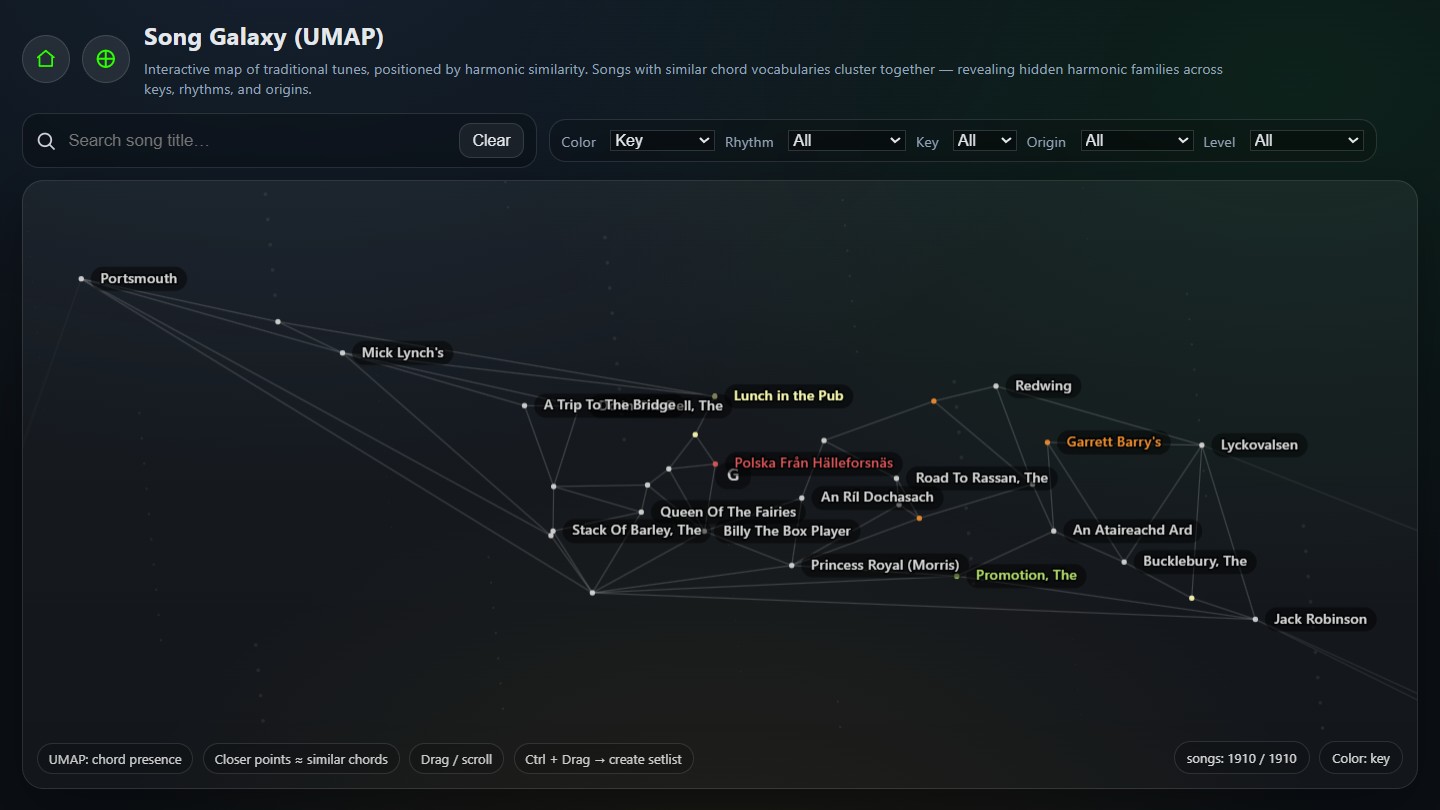
When the page loads, the page zooms to the region where the selected tune is located, then look at what’s clustered around it. Those nearby points are your best candidates for “similar harmonic feel”.
How to read the map
1) Distance
Distance is the main signal: near = similar chord vocabulary. Think of it like a “harmonic neighbourhood”.
2) Colour
Use the Color dropdown to paint points by different metadata: key, rhythm, origin, or complexity. Colour doesn’t change the positions – it just helps you see patterns.
3) Labels and constellation links
If your Galaxy has toggles like Labels and Constellations, use them strategically:
- Labels ON when zoomed in (to spot tune names).
- Labels OFF when zoomed out (to reduce clutter).
- Constellations ON to visually suggest local “families” of tunes.
Finding neighbours fast
Here’s a practical trick: don’t start with filters. Start by getting visually close to your tune and clicking neighbours first. Filtering too early can hide the best candidates.
- Press
/to focus search (if enabled). - Type part of the tune title (e.g., “Garrett”).
- Click the tune from the results or click its point/label.
- Zoom in slightly and click 3–5 nearest points.
Keep a small notebook list of “great neighbours” for each tune you learn. Over time you’ll discover your favourite harmonic regions.
Using filters without losing the cluster
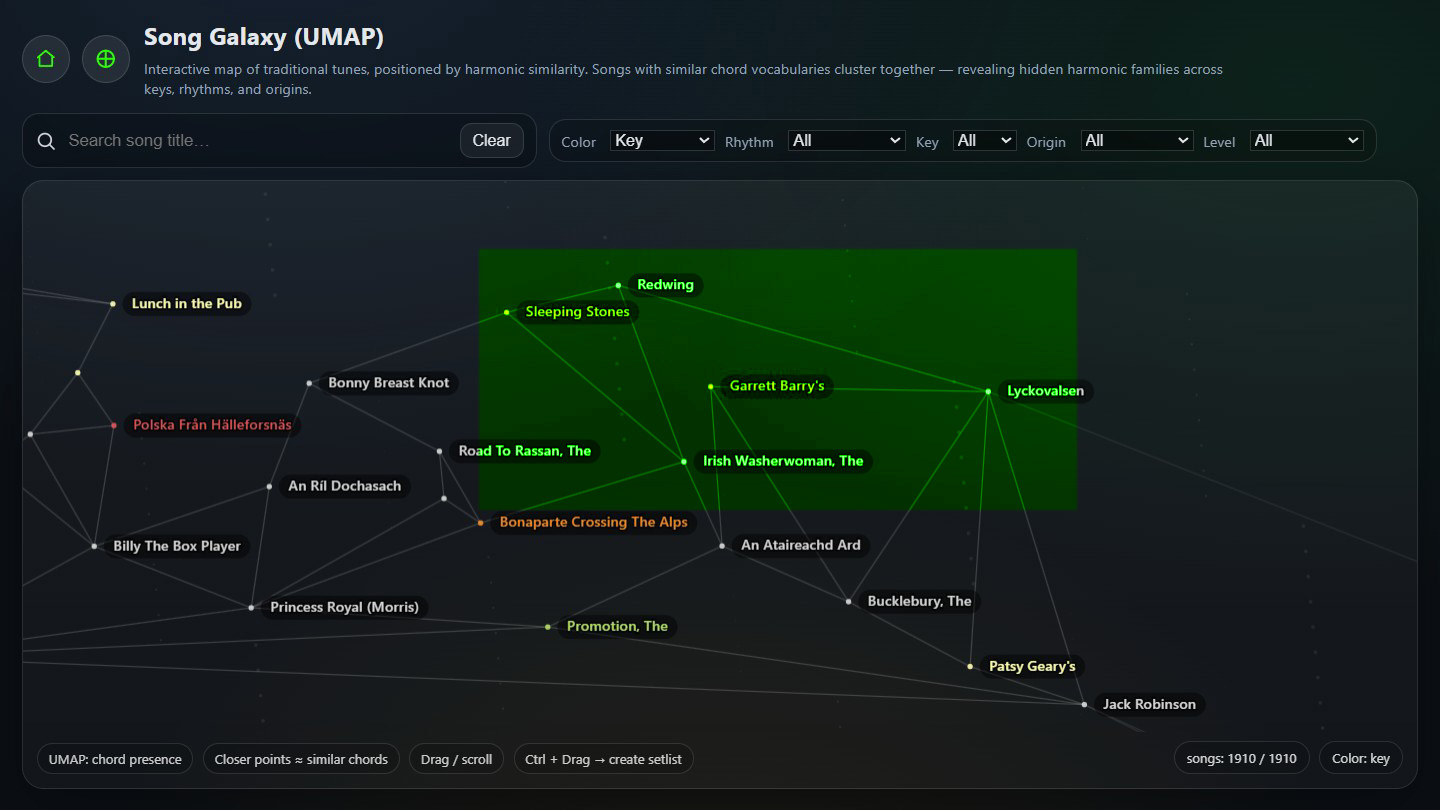
After you’ve identified a cluster you like, filters become useful for narrowing down what you want to play next:
- Rhythm: keep it in reels / jigs / hornpipes (or deliberately jump styles).
- Key: if you’re building a set, staying in the same key can reduce retuning/capo hassles.
- Origin: explore regional families (Irish, Scottish, English, etc.).
- Complexity: choose “easy wins” or challenge yourself.
If you filter too hard (e.g., key + origin + rhythm + complexity), you may end up with just a few points and miss great neighbours. Start broad, then tighten gradually.
Turning discoveries into a setlist
Once you’ve found 3–6 related tunes, you can turn them into a practice session or performance setlist. A good set often works like this:
- Warm-up tune: easy and familiar.
- Core tune: the one you’re learning / showcasing.
- Neighbour tune: very close harmonically (smooth transition).
- Contrast tune: nearby, but different rhythm or origin (adds variety).
Use “Ctrl + Mouse Drag” to box-select a little cluster and instantly generate a setlist candidate.
Viewing Your Setlist in Song Galaxy
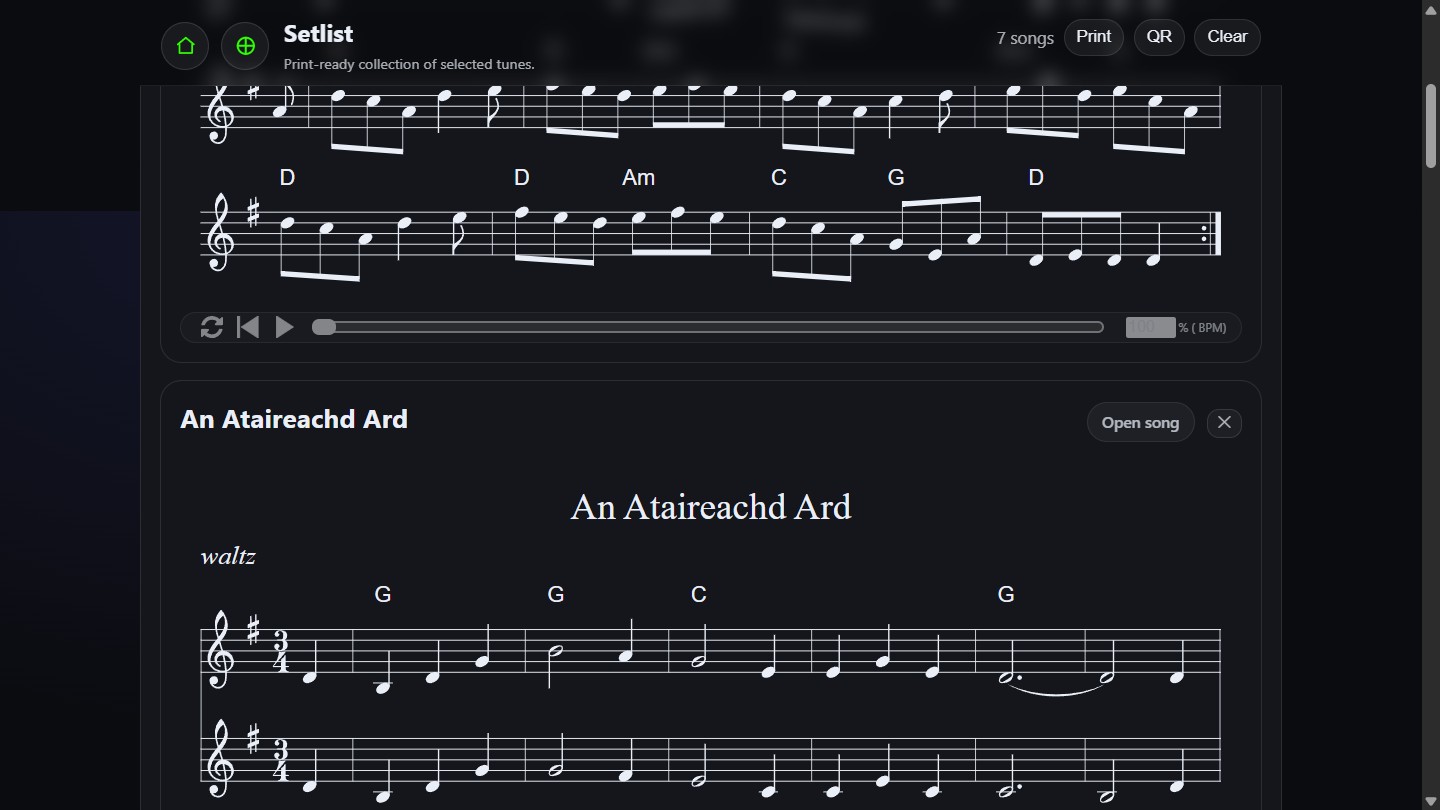
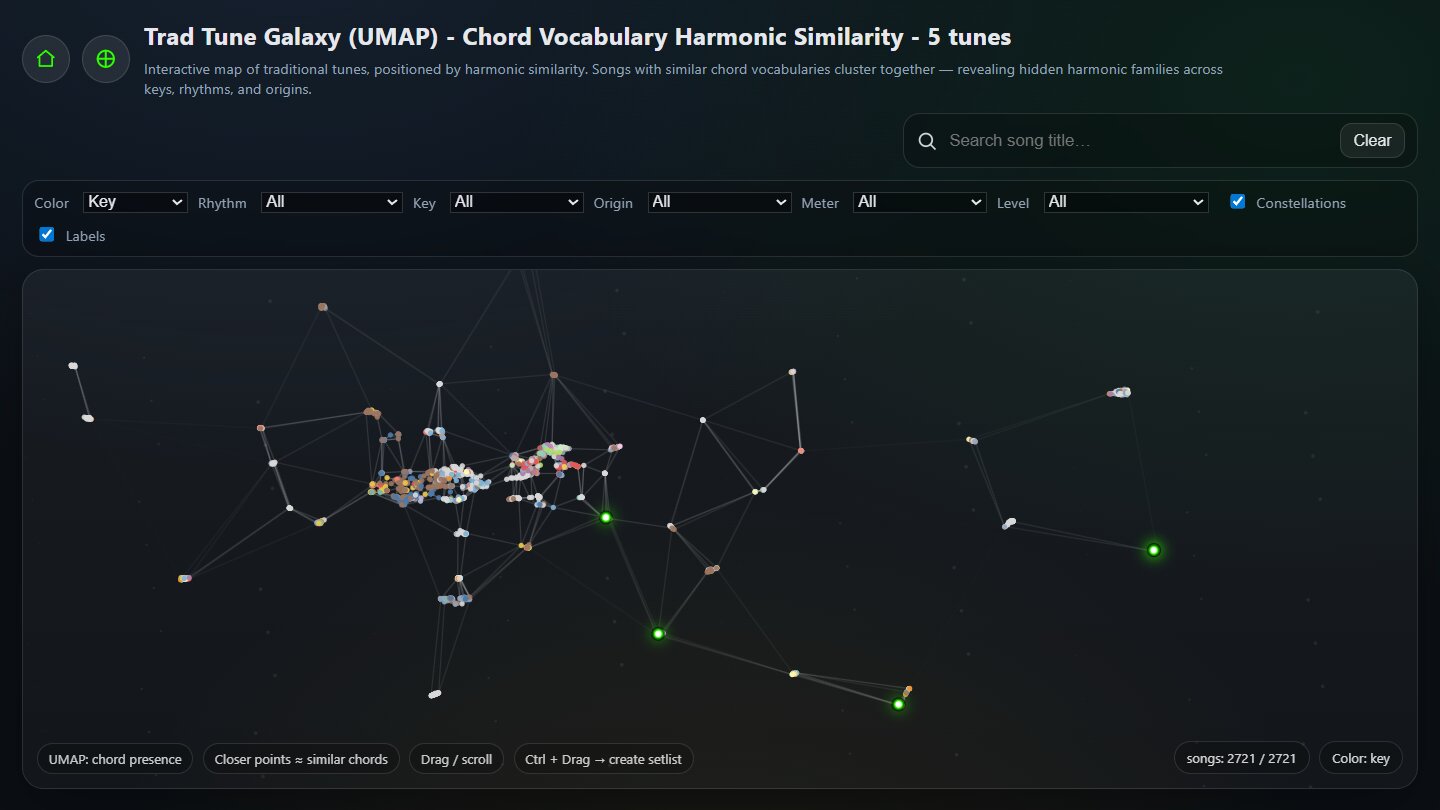
Once you’ve created a setlist, you can instantly open the entire group inside Song Galaxy. This highlights all selected tunes and zooms to fit them on the map, so you can see their harmonic relationship at a glance.
This is especially useful for:
- Checking how tightly clustered your set is harmonically.
- Finding a “bridge tune” between two slightly distant selections.
- Adjusting order based on harmonic proximity.
For example, here’s a small three-tune set opened directly in Galaxy:
Try this three-tune set in Galaxy: Hesleyside Reel - Darling Nellie Gray - Our Kate
A repeatable 5‑minute workflow
Use this every time you learn a new tune:
- Open the Galaxy focused on your tune.
- Zoom in one level; click 3–5 nearest neighbours.
- Open the best 2 neighbours in new tabs.
- Apply a gentle filter (rhythm or key) if needed.
- Pick 3 tunes for a mini setlist and practise the transitions.
FAQ
Does “nearby” always mean the tune will sound similar?
Not always – it’s a strong hint, not a guarantee. The map is based on chord vocabulary similarity. Melody and phrasing can still differ. But for finding harmonically compatible tunes (especially for setlists), it’s a very effective shortcut.
Why do I see separate clusters for tunes that share a key?
Key is just one factor. Two tunes in D major can use very different harmonic palettes. Clusters often reflect functional harmony patterns and common chord progressions rather than just key.
How do I use this if I’m a guitarist who prefers capo shapes?
Find harmonic neighbours first (distance), then filter by key second. This gives you tunes that “fit” harmonically, and you can decide whether to transpose/capo afterwards.
Can I share a specific view with friends?
Yes – share the Galaxy URL with the
?song=... parameter (and any filters if your
site encodes them in the URL). It’s a great way to say:
“Here’s the harmonic neighbourhood of this tune.”
Open the Galaxy for your current tune, click 3 neighbours, and try playing just the chord changes back-to-back. You’ll quickly hear why those points sit close together.
Try it now: Garrett Barry’s on Song Galaxy